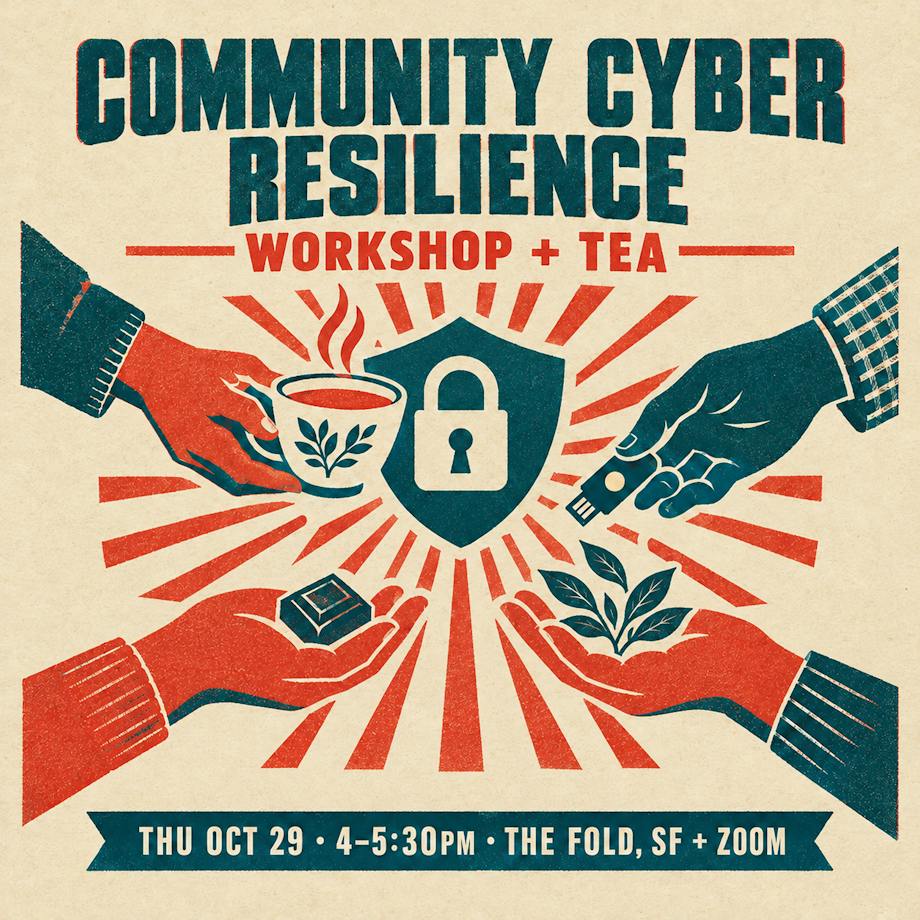
Community Cyber Resilience
Simple steps that keep the bad guys out.
Thu Oct 29 · The Fold, SF + Zoom
Your hosts
Gaia Dempsey
Founder, executive & forecaster at the edge of emerging tech. Co-founded DAQRI (industrial AR), former CEO of Metaculus (forecasting), founder of 7th Future. Long-time voice on AI safety; written for Scientific American.
Jason Grey
Technology leader, innovator & inventor, engineer & architect. 40+ years writing software. Former Chief of Technology at Life Time Fitness, CTO at Warecorp, built the first mobile target.com, and led indexing, crawling and the AI context engine at Kagi.
Three big wins
- Turn on automatic updates everywhere
- Set up a password manager for your key accounts
- Turn on two-step sign-in (2FA) for your most important accounts
Further along? We'll also cover hardware security keys — and being ready when the power goes out.
Layers Win
No lock is perfect. Stack a few, and you're a hard target.
Like an onion
Each layer stops some attacks. Together they stop almost all of them.
- Updates close holes crooks already know about
- Password manager = a different strong password everywhere
- 2FA = a stolen password isn't enough
- Hardware key = fake sites can't fool it
your stuff
Most break-ins are boring
Old software
A known bug that was already fixed — just not installed.
Fix: updates
Reused passwords
One site leaks, crooks try that password everywhere else.
Fix: password manager
Fake login pages
A scary email, a lookalike site, you type your password.
Fix: 2FA & keys
You don't need to be a fortress. Just harder than the next person.
Update Everything
The easiest, biggest win. Turn it on once, then forget it.
Updates are free repairs
- When a security hole is found, it's public — crooks read the news too.
- The update is the patch. Not installing it leaves the door open.
- Turn on automatic updates, and restart when asked.
- Don't forget browsers, apps, and your Wi-Fi router.

Mac
- Install anything waiting
- Click ⓘ next to Automatic Updates
- Turn everything on — especially Install Security Responses and system files
Aim for macOS 27 · or the latest macOS 26.x
Apple fully patches only the newest version. Intel Macs can't run macOS 27.

iPhone & iPad
- Turn on everything, including Security Responses & System Files
- Plug in overnight on Wi-Fi — it updates while you sleep
Aim for iOS / iPadOS 27 · iPhone 11 or newer
Stuck on iOS 18 or older? Your phone is no longer fully protected.

Windows
- Click Check for updates and install
- Turn on Get the latest updates as soon as they're available
- Advanced options › turn on Receive updates for other Microsoft products
Aim for Windows 11, version 26H2 (25H2 is OK)

Android
Samsung: Settings › Software update › Download and install. Turn on Auto download over Wi-Fi.
Install the Security update and Google Play system update.
Aim for Android 17 · security patch less than ~2 months old

Linux

Ubuntu / Mint / Debian
sudo apt update && sudo apt full-upgrade
# install security fixes automatically
sudo apt install unattended-upgrades
sudo dpkg-reconfigure -plow unattended-upgrades
Fedora
sudo dnf upgrade --refresh
# apps from Flathub
flatpak update
Or use the Software app › ⋮ › Preferences › Automatic Updates.
Aim for Ubuntu 26.04 LTS (24.04 OK) · Fedora 44 or newer
The other stuff
Browser
Chrome, Firefox, Edge and Safari update themselves — but only when you restart them. Close it fully once in a while.
Apps
Turn on auto-update in the App Store / Play Store. Delete apps you don't use.
Router
Check the maker's app or admin page for auto firmware updates. Very old router? Replace it.
Password Managers
Remember one password. Let the app remember the rest.
Any of these is great
Apple Passwords
Free Built in
Already on your iPhone and Mac. Zero setup if you're all-Apple. Works on Windows via iCloud. No Android.

1Password
Paid Families
The most polished. Easy sharing with family, great on every device, extra-strong account protection (Secret Key).

Bitwarden
Free Open source
Free on every device, open source, and checked by outside experts. Cheap upgrade for extras.
Set up Apple Passwords
- Turn on sync: Settings › your name › iCloud › Passwords → On
- Turn on AutoFill: Settings › General › AutoFill & Passwords → pick Passwords
- On Mac: System Settings › your name › iCloud › Passwords → On
- On Windows: install iCloud for Windows + the iCloud Passwords browser extension
- Open the Passwords app › Security to see weak or leaked passwords
Set up 1Password
- Sign up at 1password.com (Family plan if you share a household)
- Pick a passphrase as your account password
- Save your Emergency Kit (it has your Secret Key) — print it and store it safely
- Install the app on phone + computer, and the browser extension
- Phone: Settings › General › AutoFill & Passwords → 1Password
- Import from your browser, then check Watchtower
Set up Bitwarden
- Create an account at bitwarden.com
- Pick a passphrase as your master password — Bitwarden can't reset it if you forget
- Turn on 2FA for Bitwarden itself, and save the recovery code
- Install the app on phone + computer, and the browser extension
- Set Bitwarden as your phone's AutoFill service
- Import from your browser, then check Reports
Start small
- Email first — it resets everything else
- Bank and phone carrier
- Apple / Google / Microsoft account
- The rest, as you log in over the next few weeks
Good Passwords
Long beats clever.
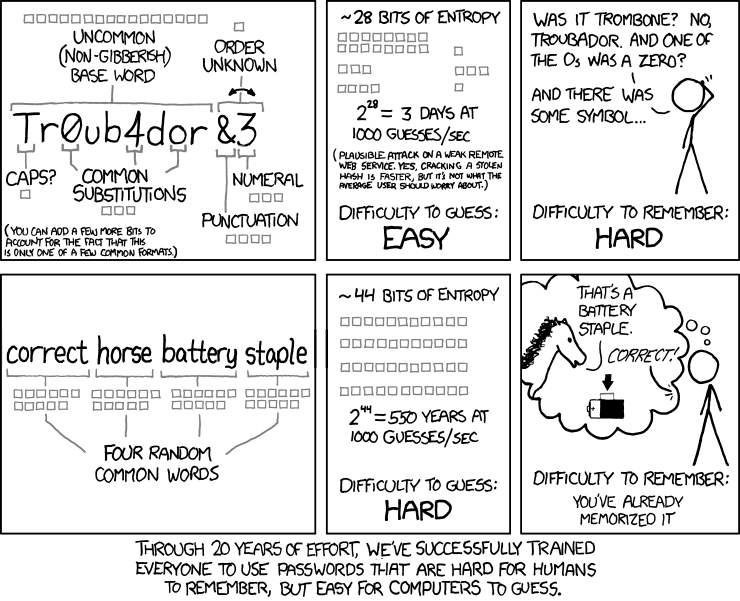
xkcd #936 by Randall Munroe · xkcd.com/936 · CC BY-NC 2.5
Length, not symbols
Weak
P@ssw0rd!
Short. Swapping a→@ fools nobody — computers try that first.
Strong
lantern-pickle-orbit-cello
Four or more random words. Long, easy to type, easy to remember.
- Random words — not a song lyric, quote or your pet's name
- You only need to memorize two: your password manager and your device passcode
- Let the password manager make up everything else
Keep it simple
One per site
Every account gets its own password. When one site leaks, the others stay safe.
Change when there's a reason
No need to change every 90 days. Do change it right away when a site is breached or your manager warns you.
Use the checker
Apple Passwords › Security, 1Password Watchtower, Bitwarden Reports. Fix the red ones first.
Been in a breach?
Look up your email at haveibeenpwned.com. Most of us have been — that's why unique passwords matter.
Spot the Scam
Don't trust what you see. Check it yourself, the official way.
Don't use their link. Use your own.
Email from your bank? Don't click it.
- Close the email
- Open your bank's app, or type the address yourself (or use a bookmark)
- Log in normally — if it's real, the message is waiting there too
Same for calls: hang up and call the number on the back of your card or the official website.
Red flags
⏰ Rush
"Account locked!" "Pay in 24 hours!" Panic is the point — slow down.
🤫 Secrets
Asks for a code, password, or to keep it quiet.
💳 Odd payment
Gift cards, crypto, wire transfer, payment apps. Real companies don't.
🎁 Too good
Prize, refund, or a deal you didn't expect.
📎 Surprise
Attachments, invoices or "shared documents" you weren't expecting.
🤖 Looks perfect?
AI writes flawless scams now. No typos ≠ safe.
Read the address
Hover (computer) or long-press (phone) to see where a link really goes. The real site is the part just before the first single /.
This is account-verify.net — not Chase.
Swapped letters
paypa1.com · rnicrosoft.com (r + n ≈ m)
Extra words
bankofamerica-support.com · apple-id-help.net
Free check
Your password manager won't fill in on a fake site. That's your warning.
Bot calls & fake voices
- Caller ID can be faked — "Your Bank" on screen means nothing
- Robocalls and AI voices sound real — even like family
- Your bank will never ask for a code they texted you
- Pressure? Hang up. Call back on a number you already trust
- Pick a family safe word for emergencies
Cut the noise
iPhone: Settings › Apps › Phone › Silence Unknown Callers or Call Screening
Android: Phone app › Settings › Spam and Call Screen
Common tricks
📦 "Delivery problem"
Fake parcel texts with a link to "reschedule". Check in the shipper's app instead.
🚗 "Unpaid toll"
Very common right now. Go to your toll account directly.
🔳 QR stickers
Fake QR codes stuck on parking meters and menus. Look for a sticker over the real one.
🖥 "Call Microsoft"
Scary pop-up says your computer is infected. Close the browser. Never call the number.
Don't reply to spam texts. Forward them to 7726 (spells SPAM) — works in the US, UK and Canada.
Never share these
- One-time codes from texts or apps
- Passwords — no real company asks
- Remote access to your computer or phone
- Payment by gift card, crypto or wire
Oops, I clicked
- Don't panic, and don't feel bad — scammers are pros
- Typed a password? Change it now on the real site, plus anywhere you reused it
- Shared card or bank info? Call your bank on the number on your card
- Installed something or gave remote access? Disconnect from Wi-Fi and get help
- Report it, so others get warned
🇺🇸 reportfraud.ftc.gov · ic3.gov 🇬🇧 reportfraud.police.uk More countries: our Advanced page
Two-Step Sign-In
Something you know + something you have.
The 2FA ladder
- 1Text message (SMS)Better than nothing●○○○○
- 2Authenticator appCodes on your phone●●○○○
- 3Passkey + face / fingerCan't be phished●●●●○
- 4Hardware keyCan't be phished, can't be copied●●●●●
- 5Three keys, nothing elseFull send★★★★★
Any step up is a win. Start where you are.
Text message codes
- A code is texted to your phone
- Weakest option: crooks can trick your carrier into moving your number to their phone ("SIM swap")
- Fake sites can ask you for the code
- Sometimes it's the only choice (some banks) — use it then
Authenticator apps
A 6-digit code that changes every 30 seconds — on your phone, not sent over the air.

Google Authenticator
Dead simple. Backs up to your Google account, so a new phone is easy.

Microsoft Authenticator
Best for Microsoft accounts — tap to approve, with number matching. Also does regular codes.

Duo Mobile
Common at work and school. One-tap push approvals. Also does regular codes.
Others:
 2FAS free & open source ·
 Ente Auth open source, encrypted sync ·
 Aegis Android, stays on device ·
 Authy phone-only now ·
Your password manager can do codes too (handy, but all eggs in one basket)
Authy phone-only now ·
Your password manager can do codes too (handy, but all eggs in one basket)
Passkeys & biometrics
- Your phone or computer becomes the key
- Unlock with your face, fingerprint or PIN — no password to type
- Won't work on a fake site — it checks the address for you
- Your face/fingerprint never leaves the device
- Saved in Apple Passwords, 1Password, Bitwarden or Google
Hardware security keys
- A small USB / tap key — like a house key for your accounts
- Plug in or tap your phone to sign in
- Can't be phished, can't be copied remotely
- Always register at least two — one is a backup
- Buy from yubico.com or a big retailer — not a random reseller

YubiKey 5 (USB-C + NFC) works with almost everything
Three keys. Nothing else.
🖥 Fixed
A tiny key (YubiKey Nano) that lives in your computer.
🔑 Mobile
On your keychain. Tap it on your phone (NFC).
🔥 Fire safe
The backup. Locked away at home for emergencies.
Then remove text messages and app codes. Your account is only as strong as its weakest way in.
Google calls this the Advanced Protection Program.
Save your backup codes!
Every account gives you backup codes when you turn on 2FA. They get you in if you lose your phone or keys.
- Good: save them in your password manager
- Better: print them and keep them in your fire safe
- Do NOT leave them in Downloads, Documents, your desktop, or cloud storage

Google: where to start
Scroll to How you sign in to Google.
Everything below lives here:
- 2-Step Verification
- Passkeys and security keys
- Google Authenticator
- 2-Step Verification phones
- Backup codes
Google: phone & app
1Turn on 2-Step Verification — Google walks you through it.
2Google prompts: any phone signed in to Google gets a "Is it you?" tap. Turned on by default.
3Authenticator: click Set up authenticator, scan the QR code with your app, type the code.
4Text message: fine as a backup — remove it once you have keys.
Google: passkeys & keys
1Create a passkey on your phone and laptop — then sign in with your face or fingerprint.
2Add a security key — plug in or tap your YubiKey when asked. Do it for each key.
3Backup codes › Get backup codes › print or save in your password manager.

Microsoft: where to start
Click Manage how I sign in (Advanced security options).
Works for Outlook, Hotmail, Xbox, Skype, OneDrive and Windows sign-in.
Microsoft: add sign-in ways
Click Add a new way to sign in or verify, then pick:
- Use an app — Microsoft Authenticator (tap to approve) or any code app
- Face, fingerprint, PIN or security key — makes a passkey or adds your YubiKey
- Text a code — backup only
Then turn on Two-step verification.
Microsoft: go passwordless
1With the Authenticator app or a key set up, turn on Passwordless account. Now there's no password to steal.
2Recovery code › Generate a new code › print it or save it in your password manager.
3Remove old phone numbers and emails you no longer use.
Physical Security
Storms, earthquakes, cyber attacks: sometimes the power, phones and card machines go down.
Be ready for 3 days
🇬🇧 UK & 🇪🇺 EU
- 3 days on your own (72 hours)
- UK launched "Be Ready" last week (22 Oct)
- 3 litres drinking water per person, per day
- Cash, FM radio, power bank, torch, warm layers, copies of ID
🇺🇸 US
- Several days on your own — at least 3
- Ready.gov basic kit
- 1 gallon water per person, per day (drinking + washing)
- Hand-crank or battery radio, NOAA weather radio, cash, phone backup battery
Same idea everywhere: help can take days to reach you. Details below ↓
UK: Be Ready
Cabinet Office · launched 22 Oct 2026 · gov.uk/beready
Water
Bottled, 3 days. 3 L per person per day to drink — more for cooking and washing.
Food
3 days, no fridge, no cooking. Tins, dried fruit, nuts. Buy what you normally eat.
Light & warmth
Torch + spare batteries. Blankets, sleeping bags, warm clothes.
Info
FM radio (battery or wind-up). Charged power bank.
Money & papers
Cash (notes + coins) and cards. Copies of ID. Written phone numbers and medicines.
Health & more
First aid, medicines, hygiene. Baby and pet supplies.
Their tips: build it slowly while shopping · check it every 6 months · swap numbers with your neighbours.
EU: 72 hours
European Commission · Preparedness Union Strategy
- Every household should cope on its own for 72 hours — the first days of a crisis are the hardest
- Named essentials: food, water, torch, ID papers, medicine, radio, plus a power bank and cash
- Threats in mind: floods, fires, cyber attacks, power cuts, war
Many countries publish their own guide too — e.g. France, the Netherlands, Ireland, Sweden, Finland, Poland.
US: Ready.gov kit
FEMA · ready.gov/kit · local: ReadySF
- Water: 1 gallon per person per day, several days
- Food: several days, non-perishable
- Radio: battery or hand-crank, plus a NOAA weather radio
- Light: flashlight + extra batteries
- Phone: charger + backup battery
- First aid kit, prescriptions
- Cash
- Whistle, dust mask
- Wipes, garbage bags (sanitation)
- Wrench to turn off utilities, manual can opener, paper maps
How long?
3 days
The government minimum. A shelf in a closet.
Start here
5 days
Do this for sure. Covers a bad storm or a big outage.
Must have
90 days
Much better. Covers a long outage, a job loss, or a big quake.
Goal
Build it bit by bit: buy one extra each time you shop.
💧 Water
- Drinking: 3 L (UK) to 1 gallon (US) per person per day
- 5 days for 2 people ≈ 10 gallons / 40 L — a few store-bought jugs
- 90 days: too much to buy in bottles — use storage barrels and a water filter
- Your water heater holds 30–50 gallons of clean water
- Don't forget pets
🥫 Food
- Food that needs no fridge and no cooking: tins, nut butter, crackers, dried fruit, nuts
- Buy what you already eat — then eat the oldest first and replace it
- Manual can opener
- 90 days: add rice, beans, oats, pasta, and a camping stove with fuel
- Special diets, baby formula (ready-to-feed), pet food
💵 Money
- When power or networks go down, cards and phone payments stop
- Keep cash in small bills (and some coins)
- Enough for about a week of food and fuel
- Store it with copies of ID and documents
📻 Radio
- When phones and internet are down, radio still works
- Get one that runs on batteries and a hand crank (many have solar and a USB port too)
- US: pick one with NOAA weather alerts
- Write down your local emergency stations
Bonus
Walkie-talkies (FRS) — no license, talk to neighbours and family nearby.
🔋 Battery backups
Small
Power banks — keep 1–2 charged. A 20,000 mAh bank ≈ 4 phone charges.
Recharge every few months.
Medium
A UPS (battery box) for your modem and Wi-Fi router — stays online through short outages.
Large
A portable power station (1–2 kWh) plus a solar panel. Runs the fridge, medical devices, lights.
- Torches and lanterns: LED, plus spare batteries — skip candles
- Using medical devices that need power? Make a plan with your doctor and utility
Today's checklist
- Automatic updates on — phone & laptop
- Password manager installed
- Email password is unique and strong
- 2FA on your email
- Backup codes saved (not in Downloads!)
- Golden rule: use your own link, not theirs
- 3–5 days of water, food and cash at home
Extra credit
- Passkeys on Google, Apple, Microsoft
- Two YubiKeys registered
- Carrier port-out PIN
- Family safe word
- Freeze your credit — free at Equifax, Experian and TransUnion
Questions?
More tea. More chocolate. Let's set things up together.
Slides, events & resources: communitycyberresilienceworkshop.com
Gaia Dempsey · Jason Grey